
Reports with Jupyter Notebooks#
Key idea
Keep reusable computation in Python modules, and use notebooks to communicate reproducible results.
In the context of data science and quantitative finance, the use of Jupyter Notebooks for creating reports can be useful. These reports often combine code, its output, and rich text elements, like Markdown, enabling a form of literate programming.
What is Literate Programming?#
Literate programming, a concept introduced by Donald Knuth, is a programming paradigm where the main focus is on explaining the logic and thought process behind the code in a natural language, intertwined with snippets of code. This approach contrasts with traditional code-centric programming, where comments are added to code written primarily for execution by a computer. In literate programming, the emphasis is on human understanding, making it an excellent tool for education and documentation.
Jupyter Notebooks and Markdown#
Jupyter Notebooks are an open-source web application that allows you to create and share documents that contain live code, equations, visualizations, and narrative text. They are ideal for literate programming, especially in data science and quantitative finance, due to their interactive nature and ability to combine code with rich text formatted using Markdown.
Markdown in Jupyter Notebooks#
Markdown is a lightweight markup language with plain-text formatting syntax that can be converted to HTML or other formats. It is used in Jupyter Notebooks to create formatted text including headers, lists, emphasis, links, blockquotes, and embedded images.
Creating a Report in Jupyter Notebook#
Starting a New Notebook: Open Jupyter Notebook and start a new notebook with a Python kernel.
Writing Markdown Cells:
To add a Markdown cell, select a cell, and change its type to ‘Markdown’ from the dropdown menu.
Write your content using Markdown syntax. For example:
# Main Title
## Subtitle
Here's some *italicized text*, and here's some **bold text**.
- Bullet point 1
- Bullet point 2
Adding Code Cells:
Code cells are the default cell type.
Write Python code in these cells. For example:
print("Hello, World!")
Executing Cells: Press
Shift + Enterto execute a cell and move to the next one.Including Mathematical Notations:
Jupyter supports LaTeX for rendering mathematical notations.
Enclose LaTeX commands in dollar signs (
$) for inline equations or double dollar signs ($$) for displayed equations. For example:Inline equation: $E = mc^2$ Displayed equation: $$ a^2 + b^2 = c^2 $$
Embedding Images and Graphs:
For external images, use Markdown syntax:
For images generated by code (e.g., plots from
matplotlib), simply execute the code in a code cell, and the output will be displayed in the notebook.
Combining Elements:
Integrate explanations in Markdown with code cells to create a cohesive and interactive report.
Exporting the Notebook:
Jupyter Notebooks can be exported to various formats including HTML, PDF, and Markdown via the ‘File’ > ‘Download as’ option.
Discussion
Make sure to try this for yourself. Add some markdown cells and then export to an HTML file or PDF.
What are the downsides of using Jupyter Notebooks?#
Not everyone in the computer science world is fully on-board with Jupyter notebooks. It has its drawbacks and some say that it encourages bad practices. See here for one opinion: The Five Worst Things About Jupyter Notebooks
It is almost impossible to practice good code versioning
The non-linear workflow of jupyter - It’s best and worst part
Jupyter is bad for running long asynchronous tasks
Jupyter can be slow
No IDE integration
One more thing
It’s often important to consider where computations are run. For code that’s easy to put into Docker, deploying to a cloud solution is easy. For notebooks, there are also good options, though you’re more locked into specific solutions.
Item 5 is out of date: VS Code now edits and runs notebooks directly, with a debugger and a variable viewer. Items 1 and 2 are the ones that matter for a pipeline, and the workflow at the end of this page addresses both.
Git Diffs of Jupyter Notebooks#
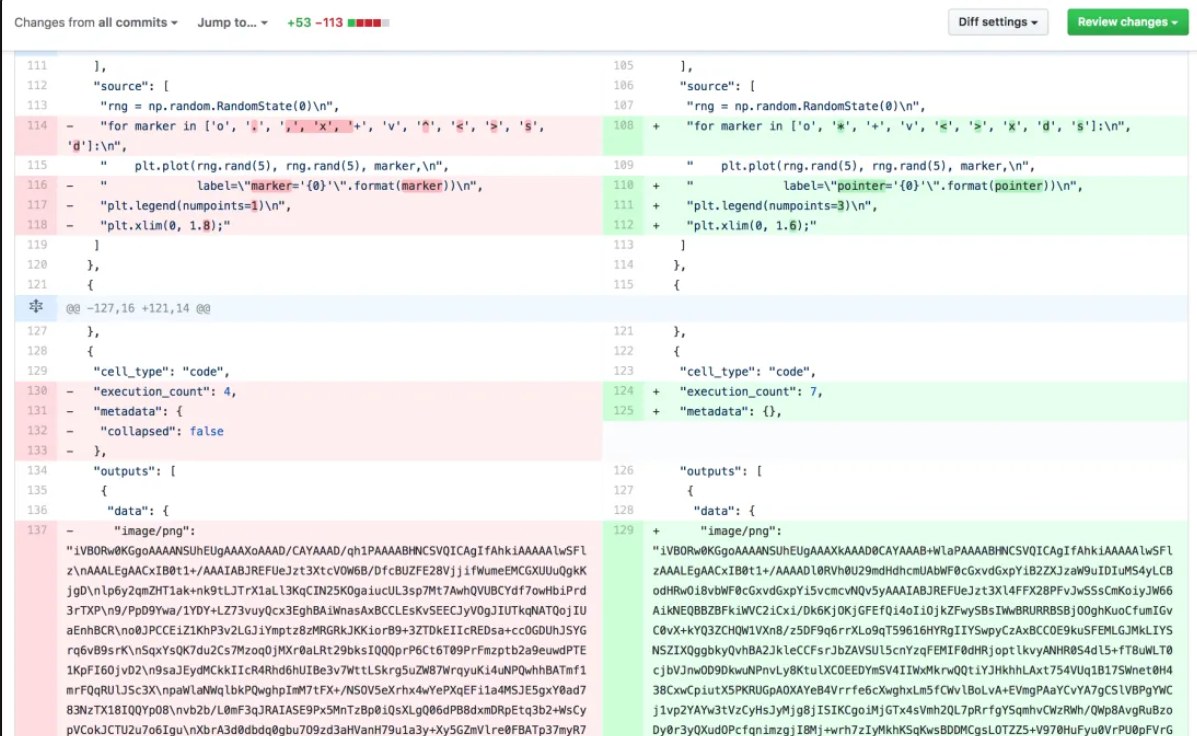
There are tools like nbdime or even VS Code provides some help with this issue, but it adds a lot of extra tooling that can be combersome and difficult for new users.
My Solutions for Incorporating Jupyter Notebooks into Git and an Automated Pipeline#
I do not keep a notebook as an .ipynb file. I keep it as an ordinary Python file in Jupytext’s percent format, and I name it so that you can tell it is a notebook: something.ipynb.py. (HW 1 and HW 2 spell it something_ipynb.py; it is the same idea.)
# %% [markdown]
# # Treasury Yield Curve Analysis
#
# This notebook analyzes Treasury yields.

# %%
import pandas as pd

# %%
df = pd.read_parquet("treasury_yields.parquet")
df.head()
Working interactively. VS Code recognizes each # %% line as a cell and runs it in the Python Interactive Window. You get most of the notebook experience, and the source stays a Python file that Git can diff.
Building the report. The pipeline turns that file into the report:
The Jupytext
.pyfile is the source of truth. It is the only version you edit and commit.jupytextconverts it to.ipynb.nbconvertexecutes the notebook and exports it, to HTML for example.Both steps are actions of one
doittask, whose file dependencies are the modules the notebook imports and the files it loads.The
.ipynband the exported report are build artifacts. They are regenerated, not edited.
Why the Computation Lives in Modules#
A notebook run this way is reproducible. The reason to keep the pulls, the cleaning, and the calculations in .py modules is what a module gives you that a notebook cell does not:
Reproducibility. A notebook lets you run cells out of order, which can leave hidden state and dependencies nobody wrote down. A module runs top to bottom every time.
Testability. A function in a module can be imported and tested on its own with
pytest.Version control. A
.pymodule gives a clean Git diff and a simple merge. An.ipynbfile is JSON, with metadata and outputs mixed in.Reusability. A function in a module can be imported by several notebooks, scripts, and applications.
So the work divides three ways:
Python modules hold the reusable computation and data processing.
Jupytext notebooks hold the narrative, the charts and tables, and the reporting logic.
doitruns both in order and tracks what depends on what.
See the dodo.py file in the rendered example/ project of the course project template.